Alerts
Alerts turn the posture 365 Command already measures into email you receive when something changes, per connected tenant. A profile describes a condition - a new administrator, MFA coverage slipping below a line - and who to tell. Each profile is checked on a schedule against live Microsoft Graph data, the most time-sensitive conditions most often (see How often each profile is checked), and a matching condition raises an alert and emails its recipients.
Alerts sit under Global View in the navigation, and open on three tabs: Global Alert View, Active Alerts and Alert Profiles.
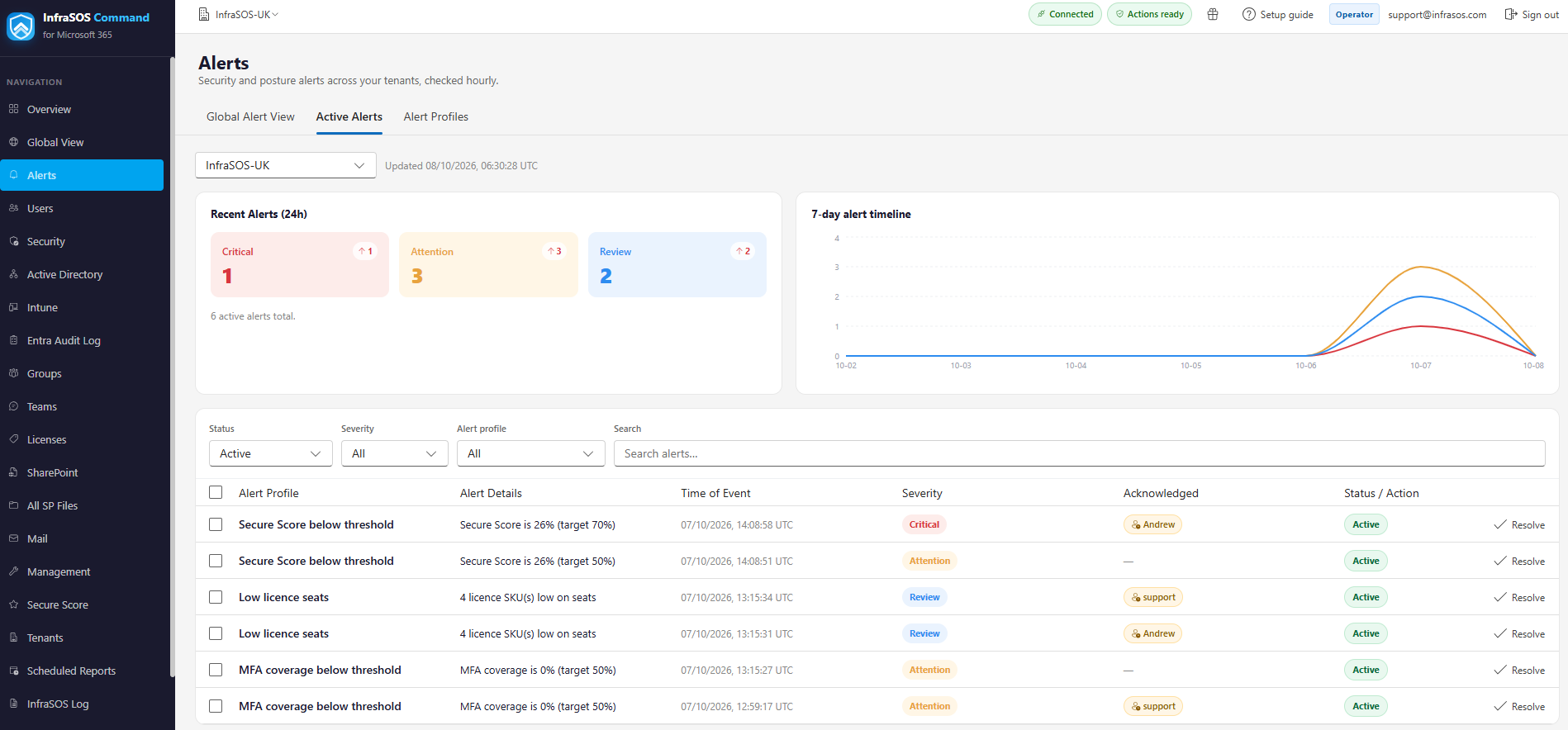
Active Alerts for one tenant: the 24-hour counts, the 7-day timeline, and the table with severity, who has acknowledged each alert, and its status.
What you can alert on
Profiles come in two kinds. Change alerts compare the tenant now against a stored baseline and fire only on genuinely new items. Threshold alerts fire when a number crosses a line you set.
| Profile | Kind | Fires when | Default severity |
|---|---|---|---|
| New administrator | Change | A new account gains a directory role | Critical |
| New guest | Change | A guest account appears in the tenant | Attention |
| New risky user | Change | Identity Protection flags a user as risky (needs Entra ID P2) | Critical |
| MFA coverage | Threshold | Coverage drops below your target (default 80%) | Attention |
| Secure Score | Threshold | The score falls below your target percentage (default 50%) | Attention |
| Licence seats | Threshold | Any SKU has fewer than N seats free (default 5) | Review |
A change alert learns the tenant first
The first check of a change profile captures a baseline of what already exists and raises nothing - it is not going to email you every current administrator the day you switch it on. From then on, only items that appear after that baseline raise an alert.
How often each profile is checked
Conditions do not all carry the same urgency, so each profile type runs on its own cadence rather than one shared timer. The most security-sensitive changes are checked several times an hour; slower moving thresholds are checked hourly.
| Profile | Checked every |
|---|---|
| New administrator | 15 minutes |
| New guest | 30 minutes |
| New risky user | 30 minutes |
| MFA coverage | Hourly |
| Secure Score | Hourly |
| Licence seats | Hourly |
So a newly added administrator is normally detected within about 15 minutes, and emailed to the profile's recipients with who made the change where the directory audit log records it.
Detection follows what Graph can see
A profile reports what Microsoft Graph reports. A directory role granted as eligible in Privileged Identity Management is not an active assignment, so a New administrator alert picks it up once the role is activated, not while it is only eligible. Active (permanent or activated) assignments are detected on the next check.
Severity
Every alert carries a severity - Critical, Attention or Review - which sets the colour it shows in and how it sorts. Each profile type has a sensible default (above), and you can override it per profile when you create one, so the same condition can be Critical in one tenant and Review in another.
Creating a profile
On Alert Profiles, choose the alert, the tenant, a severity, the threshold where the alert needs one, and the recipients.
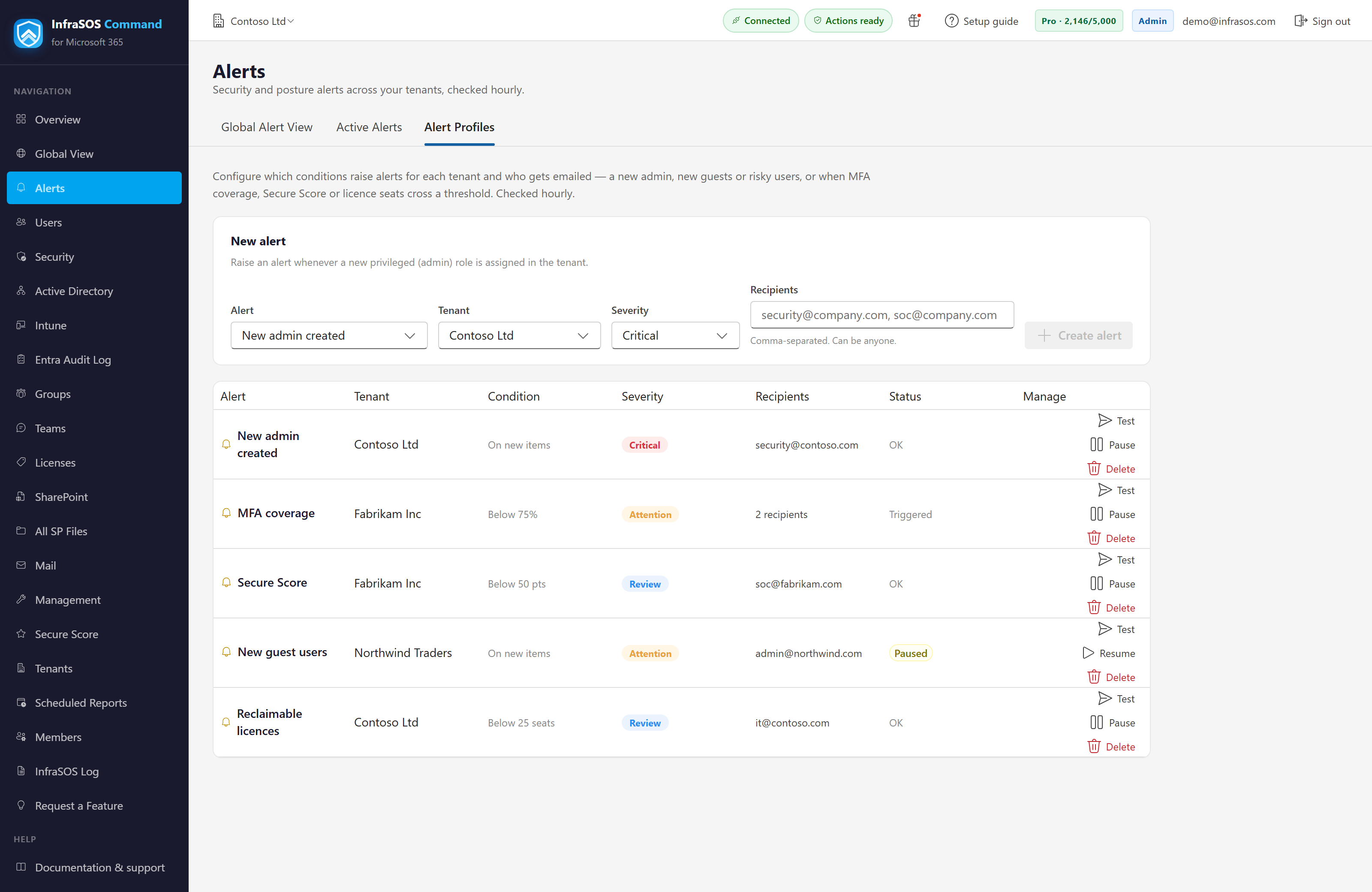
- Recipients are any email addresses, comma-separated - a shared SOC inbox, a ticketing address, a specific engineer. They do not have to be console users.
- Test sends a sample to the recipients using the tenant's current state, without touching the profile's baseline or raising a real alert, so you can confirm delivery before you rely on it.
- A profile can be paused and resumed; a paused profile is not evaluated and raises nothing.
A profile that cannot read its data says so
A profile whose data needs a permission or licence the tenant does not have - risky users without Entra ID P2, for instance - reports as unavailable rather than firing or silently doing nothing. Grant the scope and use Refresh permissions on the Tenants page. See Permissions.
Active Alerts and their lifecycle
Active Alerts is the working view for one tenant: the alerts raised in the last 24 hours by severity, a 7-day timeline, and a table you can filter by status, severity, profile or search.
Each alert moves through a lifecycle, from the row or from the detail panel that opens when you click it:
| Action | What it does |
|---|---|
| Acknowledge | Marks that you are working on it. Your name shows on the alert so teammates see it is being handled, rather than two people picking up the same thing. Release hands it back. |
| Resolve | Closes the alert, recording who resolved it and when. Threshold alerts also resolve automatically when the tenant recovers (the recovery is attributed to the system). |
| Delete | Dismisses an alert - a false positive, say. This is a soft delete: it moves to the Deleted list and can be restored, not destroyed. |
| Reopen | Restores a resolved or deleted alert to active. |
Seeing history
The Status filter switches the table between Active, Resolved, Deleted and All, each with a count. Resolved and deleted alerts are kept for 60 days, so the same table is your recent history: who resolved what, and what was dismissed. (Deleted means soft-deleted; nothing is removed before the 60-day point.)
Acting on several at once
Tick the checkbox on each row - or the header checkbox to take the whole filtered set - and an Actions menu appears above the table. Acknowledge, release, resolve, reopen or delete everything you selected in one go. Each menu item acts only on the rows in your selection it is valid for, so Resolve touches the active ones and Reopen the resolved or deleted ones, with the count shown beside each.
Global Alert View
Once you run more than one tenant, the Global Alert View is the cross-tenant picture: the alerts raised in the last 24 hours by severity with the change against the previous 24 hours, the tenants with the most new alerts, and a per-tenant table.
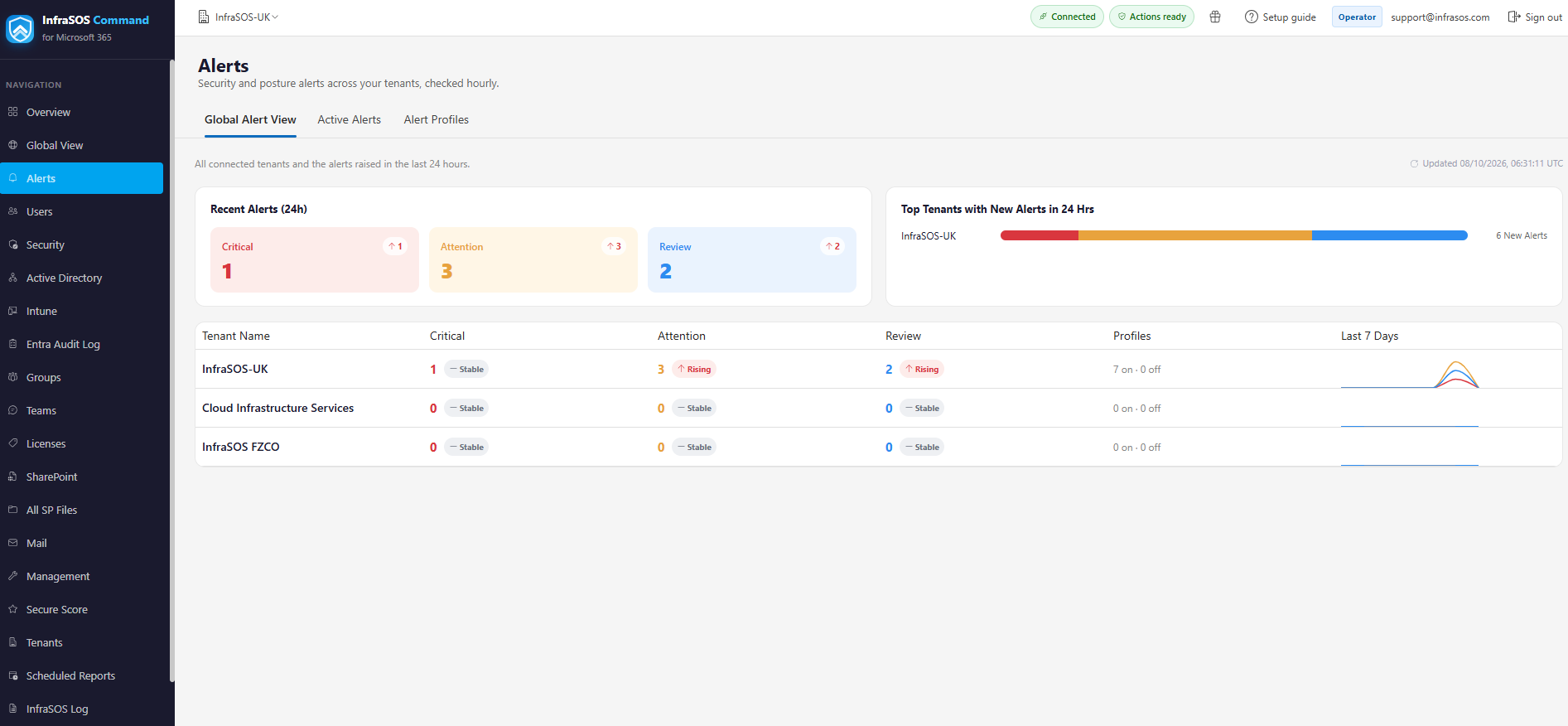
The Global Alert View: the last 24 hours across every tenant, the busiest tenants, and a per-tenant table with its trend and a 7-day sparkline.
Each tenant row shows its active alerts by severity, whether its profiles are on, a 7-day sparkline, and a trend - Rising, Improving or Stable. The trend is a rank correlation of the daily counts rather than a raw day-on-day difference, so a single noisy day does not flip it; a run that is genuinely climbing reads as Rising, one that is easing reads as Improving, and small movement reads as Stable.
What arrives
An email per alert, branded, with a coloured severity pill, the tenant, the condition and the detail. It is sent from InfraSOS, so there is no relay for you to configure.
If alerts are slow to arrive on a new setup
Microsoft 365 mail filtering can defer the first bursts from a sender it has not seen before.
If alerts (or scheduled reports) are delayed or landing in Junk, allow-list the sending domain
mail.infrasos.com in your mail filtering.
Who can do what
Alerts are visible to everyone on your team. Creating and managing profiles, and acting on alerts (acknowledge, resolve, delete, reopen) is for Admins and Operators; Viewers see the dashboards and history read-only. See Team and delegated access.
Where the dashboards start empty
A tenant you have just set profiles up for shows nothing until a profile fires: threshold breaches appear on the next hourly check, change alerts once a new item actually appears. A Test confirms delivery but does not create an alert, by design.