Reporting
Reporting is read-only and needs only the reporting application. Every report reads live from Microsoft Graph, so what you see is the tenant as it is now, not a nightly snapshot.
The reports
| Report | Covers |
|---|---|
| Overview | Headline counts and the things most worth attention, as a landing page |
| Users | Every account: type, status, licences, MFA state, last sign-in and more |
| Groups | Security and Microsoft 365 groups, membership, ownership and type |
| Licences | Subscriptions, assigned and available seats, and who holds what |
| Mailboxes, mail flow, and forwarding - including rules that send mail outside the tenant | |
| SharePoint & OneDrive | Sites, storage, inactive sites and external sharing |
| Teams | Teams, channels, guests and membership |
| Guests | Guest accounts, who invited them and when they last signed in |
| Devices | Registered and joined devices (Intune-managed devices have their own page) |
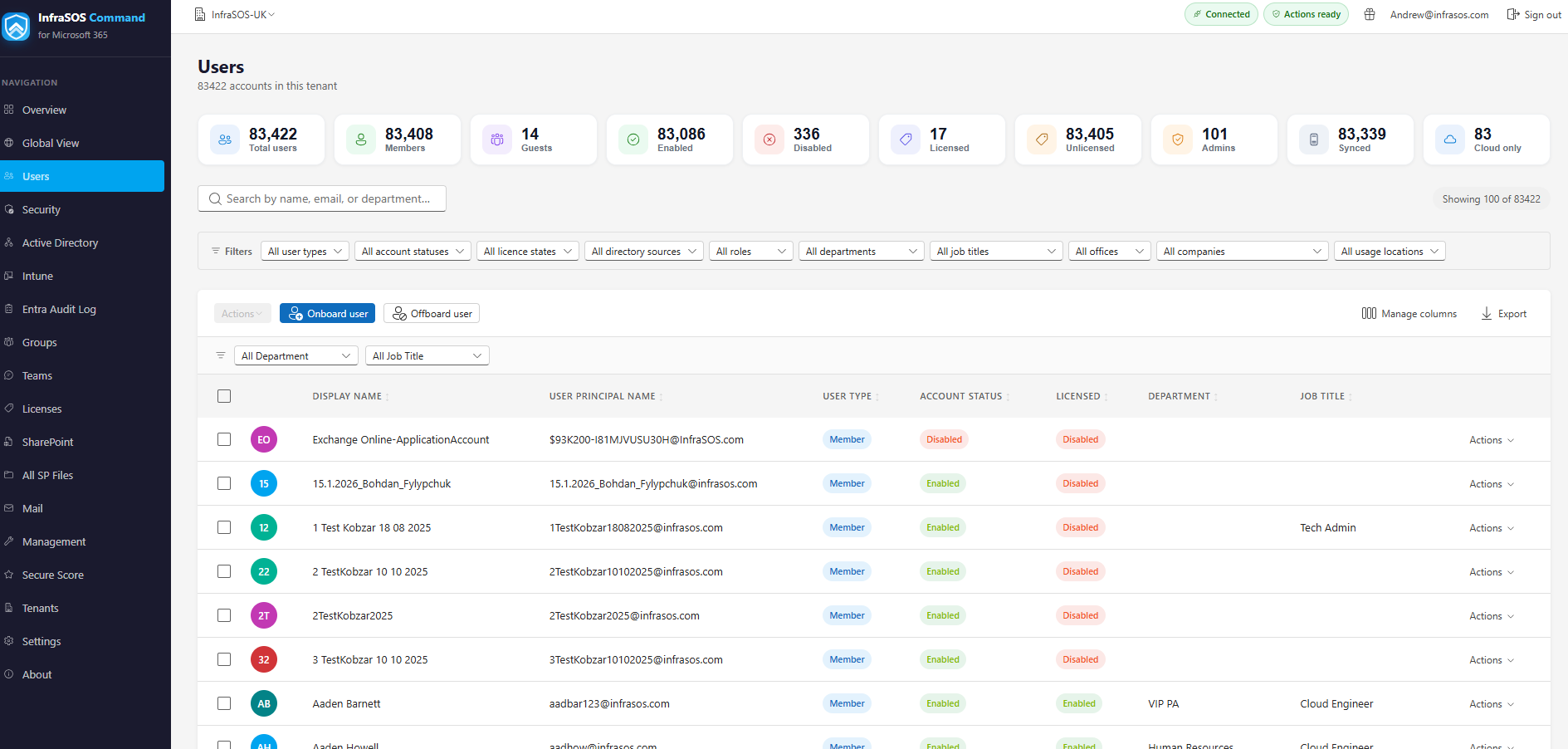
A report: searchable and filterable, with chooseable columns and export to CSV, HTML or PDF.
Working with a table
Every report shares the same controls, so what you learn on one applies to all:
- Search filters the table as you type.
- Filters narrow by the categorical columns - account type, enabled state, licence and so on - from plain-language "All …" dropdowns.
- Manage columns chooses which columns show. Your choice is remembered per report.
- Sort by clicking a column header.
- Refresh re-reads the report from Graph, bypassing the short cache that keeps paging fast.
Large tenants page as you scroll
Big reports load in pages rather than all at once. Searching and filtering apply across the whole report, not only the rows already loaded.
Exporting
Any report exports to CSV, HTML or PDF. The export reflects the filters and columns you have set, so you send exactly the view you are looking at. Exports carry a footer identifying the tenant and when it was produced.
Exports contain directory data
A report export can include names, email addresses and sign-in detail. Treat the file as you would any extract of directory data.
Acting on what you find
Where management is enabled, report rows carry an Actions menu - disable a stale account, revoke a guest's sessions, remove a licence - so you can fix what a report surfaces without leaving it. The actions, their safeguards and the permissions they need are covered in Management actions.
Security reporting
The security-specific reports - Secure Score, MFA coverage, risky users, Conditional Access, admin exposure and consented apps - have their own page: Security.